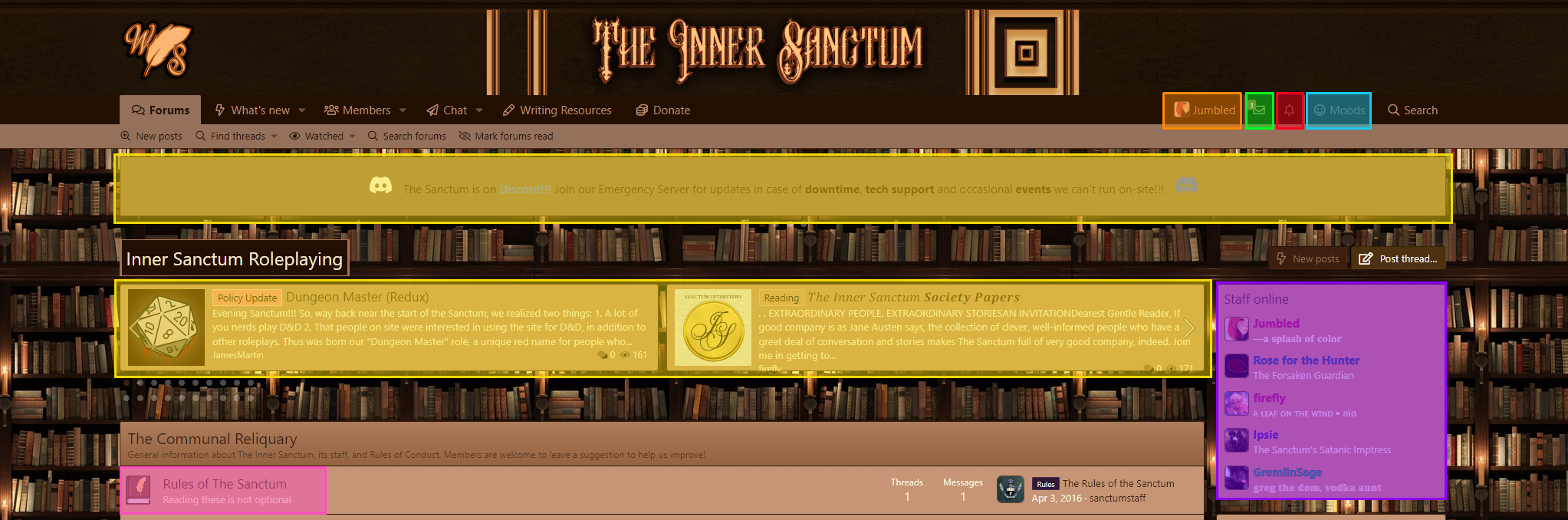
Upon joining, you have a rich brown
theme of an old library with warm colors (there are many other display options, but I will cover these later in the guide. If you feel like you
must change the display first, for your eyes or sanity, follow the
[LINK] here to the post where I explain how to do that). I will go over each of the sections I have marked with colors below with brief explanations.
████████ The Site Rules
████████ Your Account Menu
████████ Direct Messages (DMs)
████████ Alerts
████████ Moods
████████ Scrolling Site Announcements and Featured Threads
████████ Staff Currently Online
1.
████████ The Site Rules
I recommend all users to read through these before all else. I get that this is a guide and if you're here, it's likely beyond the point of "the first thing you do" but hopefully you understand what I mean. There are many different websites out there, and while some allow certain things, others do not. A big one for The Writer's Sanctum/The Inner Sanctum is that we do not allow roleplay to happen outside of the forums. Sometimes not being allowed to play in messages privately bothers people, and if that's the case for you, Sanctum might not be the best fit.
2.
████████ Direct Messages (DMs)
Your Direct Messages should have a welcome letter that's sent automatically when you join, you should see a little red 1 next to the envelope. This is the next place I suggest looking as a new user. It provides you with a series of links that explains the forums and gives you steps to follow to finish setting up your account. Introducing yourself is the next step, you can follow the link in the message to see the forum. I will cover introductions later in this guide.
3.
████████ Your Account Menu
This menu houses many useful links. When you first join, the top section, and bottom section will be more important to focus on. The middle section comes in handy after some time spent on site.
-
Top Section
-
- The top section has your Profile Picture (pfp) where you can edit it to a photo that follows the site rules.
- If you click Your User Name it will take you to your profile.
-
Middle Section
-
- Your News Feed will show you all the activity of people you have "followed" on site.
- Your Content will show you a list off all of your recent post activity.
- Reactions Received is a record for all reactions you've earned on site.
- Alerts takes you to a big list of your site notifications.
- If you invite others to the site by providing your personal link, you'll see them listed in Your Referrals.
-
Bottom Section
-
- Your Account Details allow you to customize things such as your email and profile information.
- Password and Security will let you change your password.
- Privacy allows you to control what people are able to see about you.
- Preferences has your time zone and options regarding your notifications. You can also change your theme from this menu.
- Your Signature is where you go to change what displays under your posts and in your About section on your profile.
- Connected Accounts allows you to login to the site by using an account you already hold through Google, Microsoft or Spotify.
- Following is a list of people that you have selected to follow on site. You can easily edit your followers from here.
- Ignoring is a list of people you are ignoring on site. Ignoring acts as a full block. You must edit from your list to unignore someone.
- The Personal Notepad is a place you can make notes to save on site. Some members use this to easily store posting codes or character information.
- Moods are a customization you can use to show off how you're feeling. If you select a mood, you will not have the option to remove it, only to change it to any on the list.
Notice how navigating to your Account Details brings you to the entire overview of your account. There is a list on the left hand side that lets you switch between all of the options available without having to go back to the button that displays as your pfp and name in the top toolbar.
If you are new to the site, I would suggest looking over your settings (but you can always return to them and change them to your liking whenever you need to), adding a picture to your profile (I don't recommend using a real photo of your face or anything that identifies you), and updating all of your writing preferences found at the bottom of your account details.
4.
████████ Alerts
There is a bell icon there, and occasionally you might notice someone has given your a like or a heart to something you have posted. Other alerts, or notifications, might include new posts to your threads, and serve as an easy way to navigate to them. You can change how you receive alerts by navigating to your preferences. If you select "custom" a drop-down menu will appear. Make sure to hit "Save" when you're done.
5.
████████ Moods
Moods are a fun way to personalize your account. You can change them right from the toolbar, which is faster than doing it from the account screen. The mood of your choice appears underneath your username and will be displayed wherever you post as well as the quick preview of your profile when someone hovers over your name.
6.
████████ Scrolling Site Announcements and Featured Threads
In both of these sections you will be able to find announcements, event notices, and other things of note, like the discord server we use for movie streams and the occasional game night.
7.
████████ Staff Currently Online
If you need help from a staff member, reaching out to someone on this list is typically the best method if you are looking for a quick response time.